In this tip we focus on a general-purpose and low-maintenance solution go generate an audio alert based on information in an Microsoft® Excel® workbook. This would find value in any number of scenarios where one wants to be informed of some condition being reached. It could be the price of a stock reaching a pre-determined level or an overdue shipment or an alarm condition in a dashboard. The common approach to raise an alarm would be to use VBA code to monitor a particular cell. When a threshold is reached, the code plays some sound. The three major drawbacks with this approach are that it requires the consumer to tweak the VBA code to adjust the alarm condition, it requires the presence of the sound file on each machine where the alert mechanism must work, and, by playing a generic sound file, it does not identify the specific condition that raised an alarm.
This tip addresses all of those concerns. The VBA code needs no maintenance. The cells that need monitoring are identified through a table (a worksheet in an Excel workbook). But, best of all, by leveraging Excel's ability to "speak text" (introduced with Excel 2002), we can customize each alarm's message! Not to mention that by using a named formula for the range of cells we want to monitor, we can have the system dynamically adapt to new data!
In addition to requiring Excel 2002 or later, this tip also requires the computer to have the ability to create sound. Typically, this means a sound card as well as a speaker (or speakers) connected to the computer. Finally, the Office installation on the computer must include the Text-to-Speech component.
Download the zip file containing the add-in. Optionally, also download the examples file.
The add-in file contains two files. Unzip them into the folder containing all the Excel add-ins, though, technically, they can be located in any folder.
Unzip the examples file (if downloaded) into a folder where you have other Excel documents. The add-ins folder would not be a good choice.
Run Excel. Make sure the security level is medium (Tools | Macro > Security...). If it is not, temporarily lower it to Medium.
Select Tools | Add-Ins... If the TM Audio Alerts entry is not present, click the Browse... button, locate the file wherever you saved it and open it. If Excel warns you about the file containing macros, you must select the Enable Macros button.
In the Add-Ins list, make sure that the TM Audio Alerts entry is selected.
If you had lowered the security, restore it to its previous setting.
Edit the TM Audio Alerts Monitor List.xls workbook (it is in the same folder as the add-in) to list the ranges that should be monitored for alerts. See the The Monitor List table section below for details. Save the file.
In each workbook that contains the cells that are to be monitored, add the conditional warning and name the cell(s). For details see The alert indicator in the application workbook section below.
That's it. You are all set to use the TM Audio Alerts system.
The best way to minimize maintenance of the code and associated data is to think of the setup in terms of the best place to locate different types of information and the associated decision making. Clearly, for the Alerts solution to be generic in nature, it cannot incorporate any information specific to a particular application. This also makes logical sense since the best source of what constitutes an alert is the workbook that contains the application model. So, we should device a scheme whereby the alert indicator and message is in the workbook specific to the application on hand.
Of course, the code has to know what workbooks and what cells in those worksheets it should monitor. Again, that information need not belong within the code itself. In fact, the ideal data structure for this information is a table (or, possibly, a XML schema). Since it is easier to deal with tables in Excel we will use a workbook with a Monitor List table in a worksheet to put this data.
So, finally, all that the code has to do is go through each row of the Monitor List table and, for each range in it, invoke the Speak method. That's it.
This highly decentralized structure with all decision making allocated to the workbook most suited for the task makes for a low maintenance system.
In the workbook that contains a cell with the alert message, enter a formula that shows the complete alert message when appropriate. This will typically have an IF statement that looks like =IF({alert condition}, "{alert message}",""). Actually, this IF statement can be as complex as one wants. The key is that for some error / alert condition it shows the message that has to be spoken.
Then, name this cell.
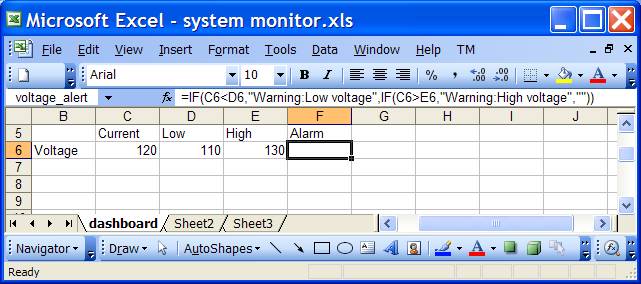
In the example below, the alert cell is F6. It contains a complex IF that contains a warning for both unusually low voltage and for unusually high voltage. Note the names of the cell, the worksheet, and the workbook. These will go into the Monitor List table.
Since the solution relies only on a named range, there is nothing that restricts us to a single cell. In the example below (a simplified version of an actual system), the workbook is used to track shipments via the shipping service, FedEx. We want it to generate an alarm if any shipment is overdue. It lists each shipment, its delivery date, the due date, and an alarm if the shipment is overdue. We want the Alerts system to speak the message in each overdue cell. And, of course, we want the system to automatically adjust to new shipments as they are added to the table. So, we use a named formula (Insert | Name > Define...) like:
overdue_alert =OFFSET('Fall 2006'!$D$2,0,0,COUNTA('Fall 2006'!$D:$D)-1,1)
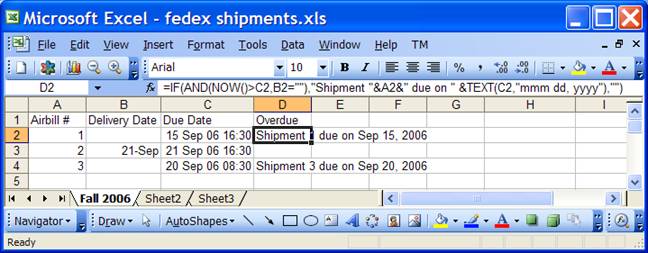
Again, note the workbook name, the worksheet name, and the range name (in this case the named formula). We will add it to the Monitor List table below.
As shown above, the name of the file must be generic alerts data.xls and the table must be the first worksheet in the first 3 columns starting with row 1. Of course, one can generalize all these restrictions but it adds little to the discussion or the flexibility of the solution. In this version of the software, the table contains only three columns: WorkbookName, WorksheetName, and RangeName
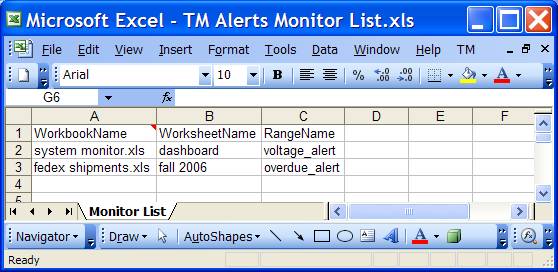
Note how the names used in the examples above show up in the table.
We will want to check the state of the different worksheets each time the worksheet is recalculated. So, we should use Excel's Calculate event procedure. That, in turn, means we need a class module with a 'WithEvents' object variable pointing to the Excel application. That, in turn, means, we need to put the code in a class module.
Of course, the class module has to know of the Monitor List table, but it does not need to know about where it is stored. So, we add a property to the class module that refers to the appropriate workbook. The total code of the class module named clsAlerts is:
Option Explicit
Option Compare Text
Dim WithEvents myApp As Application
Dim myDataWB As Workbook
Property Set DataWB(uDataWB As Workbook)
Set myDataWB = uDataWB
End Property
Property Get DataWB() As Workbook
Set DataWB = myDataWB
End Property
Private Sub Class_Initialize()
Set myApp = Application
End Sub
Private Sub myApp_SheetCalculate(ByVal Sh As Object)
If Not TypeOf Sh Is Worksheet Then Exit Sub
On Error Resume Next
Application.EnableEvents = False
With DataWB.Worksheets(1)
Dim I As Integer
For I = 2 To .UsedRange.Rows.Count
If Sh.Name = .Cells(I, 2).Value _
And Sh.Parent.Name = .Cells(I, 1).Value Then _
Sh.Range(.Cells(I, 3).Value).Speak
Next I
End With
Application.EnableEvents = True
End Sub
The code in the myApp_SheetCalculate routine contains a couple of defensive measures. First, it sets EnableEvents to False. This suppresses any events that might be raised by the actions of this routine. Of course, we must guarantee that the code must eventually set EnableEvents to True. In addition, there is no assurance that every entry in the Monitor List table is valid in the current environment (some workbooks may be closed; some entries may be flat out erroneous). Irresepective of the state of the table, our code cannot fault. Hence, we add the 'On Error Resume Next' clause.
Other than that the code is straightforward. It checks that the sheet being recalculated is a worksheet, if its name as well as its parent's name match the Monitor List row, and if so it calls the Speak method of the corresponding range.
To use this code, some code must instantiate an object of this class and set the DataWB property to the appropriate workbook. This code can go into the workbook's Open event procedure. Of course, the BeforeClose event procedure should "clean up" the Monitor List workbook. The code below goes into the ThisWorkbook code module.
Option Explicit
Dim SpeakAlerts As clsAlerts
Const cAlertsDBName As String = "TM Audio Alerts Monitor List.xls"
Private Sub Workbook_BeforeClose(Cancel As Boolean)
On Error Resume Next
Workbooks(cAlertsDBName).Close False
End Sub
Private Sub Workbook_Open()
On Error Resume Next
Dim WB As Workbook, DBFullname As String
DBFullname = ThisWorkbook.Path & Application.PathSeparator & cAlertsDBName
Set WB = Workbooks.Open(DBFullname)
If WB Is Nothing Then
MsgBox "Unable to open Alerts database (" & DBFullname & ")" _& vbNewLine _
& "Alert capability remains unavailable"
Else
WB.Windows(1).Visible = False
Set SpeakAlerts = New clsAlerts
Set SpeakAlerts.DataWB = WB
End If
End Sub
The code in the Open event procedure above checks if it can find the workbook containing the list of cells to monitor in the same directory as itself. If not, it warns the user of its unavailability. Otherwise, it instantiates the object of the clsAlerts class and sets the DataWB property.
Have you noticed the absence of a standard code module? This add-in doesn't have one!
The two biggest limitations are:
(1) The lack of a menu item to toggle the Alerts capability on and off. Currently, the way to do this is to (un)load the add-in. Adding this capability would add complexity to the code that would only distract from the core discussion.
(2) The frequency of the alerts is not customizable. While this capability would be nice, it is left to the reader to extend this tip. One way to go would be to add another column to the Monitor List table. This column would contain options (possibly through a Data Validation list) such as:
a. Each recalculation
b. Once only
c. Once whenever the alert condition is (re)triggered
As well as other options the reader may think of. The important element of this enhancement is to remember to keep this control in the data table and not bury it in the code. The code, of course, will need improvement to deal with the type of frequency entries.
The TM Audio Alerts system demonstrates how to leverage Excel's own capabilities to build a low-maintenance general-purpose audio alert system. Obviously, there are bells and whistles one can add to the system but the existing system is a completely functional one. In addition, this tip also provided an insight into the process I used to put together the functional building blocks.

