Version 4 supports the following Microsoft® PowerPoint® versions:
 2010 (32bit and 64bit)
 2007
2007
 2003
2003
The Random Slideshow add-in requires PowerPoint 2000 or later.
The add-in allows one to create a PowerPoint slideshow in which designated slides are shown in random order. This might seem somewhat unusual, but there are many uses for such a presentation. While the original intent was for a memorial slide show, the add-in has many applications.
A memorial, as originally planned
A show highlighting a city or a resort
A remembrance to a loved one
A tribute to an artist
Rehabilitation:
Jerold H, a Registered Nurse, uses the add-in to show flashcards in random sequence
Churches use the add-in. Some of the comments include:
"Your timer is actually rare find...I think I find the text changing to red once it ends a nice feature" -- P.W. (with a church in Arkansas).
"I love this add-on. I have used it many times to display pictures. It has been a life saver for me on several occasions." -- M. W. (with a church in California).
Education:
R.N. who works at a high risk school in the Western U.S. writes: "I have been working with teachers to create flash card programs using power point. The randomizer would keep students from memorizing word or fact order."
Allen O, a foreign language teacher, uses the add-in for vocabulary lessons
Justin B uses the add-in for multiple education projects
Peter B shows "developments at the edge of science during idle moments"
Tim F finds that flashcards in a particular format shown in random sequence help enhance learning and information retention
Dave P teaches math and displays multiplication problems to teach students struggling to learn multiplication tables
Entertainment / Celebration:
Anonymous used the add-in at a high school baseball banquet
Use the TM Randomize Slideshow add-in
The TM Randomize Slideshow Dialog Box
If you downloaded the executable, double-click it and follow the prompts to install the add-in in the folder of your choice.
If you downloaded the zip file, unzip it and extract the files to a location of your choice.
Office programs have a default location for add-ins. It is the most convenient location for this add-in. The location of this default folder has changed with different versions of the software. To locate this folder on your computer, open PowerPoint, then select Tools | Add-Ins (or the equivalent in PP 2007 or PP2010). In the Add-Ins dialog box, click the Add New.. button. This will open in the default folder used by PowerPoint for add-ins.
To ensure you use the correct security settings and to install and load the add-in, see Common Installation Instructions for Office add-ins
There must be an open PowerPoint presentation file. Note that the add-in always works on the active presentation file.
In PP2003 (or earlier), select the menu item TM | Random Show > Random Slide Show...
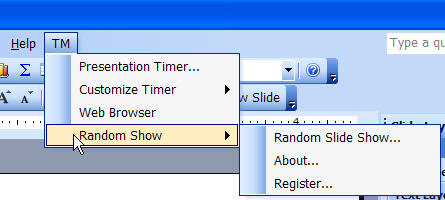
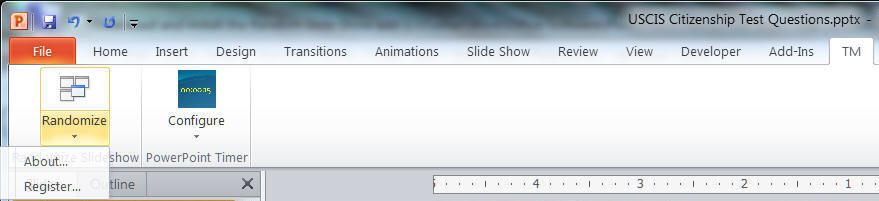
In PP2007 or later, select TM | Randomize Slideshow | Randomize.

This will bring up the TM Randomize Slideshow dialog box.
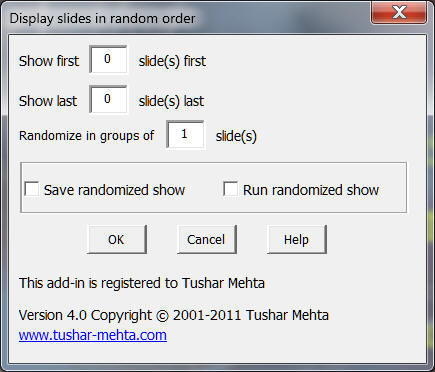
Show the first N slide(s) first: Specify how many of the initial slides should be shown in their original sequence (i.e., not subject to randomization). Use this capability to display introductory, credit, etc., material in the correct sequence. If there are no such slides that must be shown at the beginning specify zero.
Show the last N slide(s) last: Similarly, specify how many of the last slides must be shown at the end in their original sequence (i.e., without randomization). Use this capability to display slides for wrap up discussion, credit, acknowledgement, etc. If there are no such slides that must be shown at the end specify zero.
Randomize in groups of N slide(s):This feature, requested by several customers, is new with version 4 of the add-in. For those slides that will be shown in random order, the add-in allows one to create groups. The groups are shown in random order while the slides within each group are shown without randomization. Previous versions of the add-in randomized individual slides. To replicate the old behavior specify a value of 1 in this field.
Save randomized show and/or Run randomized show: Specify whether to save the randomized slide sequence and/or run the slide show immediately. You must select at least one of these options. The add-in creates a custom show named _RandomSlideShow that contains the slides in a randomized sequence. If the custom show is not to be saved, the add-in will delete it when it is no longer needed.
By creating this custom show the add-in modifies the PowerPoint file and you must have permission to add and delete custom shows. Further, when you close the file, PowerPoint will ask if it should save changes. Depending on whether or not you want to save the custom show information or not respond Yes or No.
This add-in can be evaluated for 30 days. To continue using it after the evaluation period, please register it through www.tmehta.com/paypal.
After obtaining the registration key, enter the registration name and key using the menu TM | Random Show > Register...
Visit the author's website at www.tushar-mehta.com

