The Office security environment has been getting steadily more complex. Configuring, testing, and documenting different versions of the different programs in the Office suite would require a substantial amount of work and lead to an overly long document. The settings below work for me. However, since all my computers are configured with these settings I do not know for sure which settings are required for specific actions.
You should verify that you are comfortable with the security recommendations below. You agree that, irrespective of the recommendations here, ultimately you are responsible for the security of your computer. It is, after all, your computer!.
The easiest way to access the necessary settings in Office 2010 is to make the Developer tab visible. If that is not possible, or not desired, just follow the steps for Office 2007.
The steps below are in Excel 2010 but the same process works in other Office programs such as PowerPoint 2010.
To show the Developer tab, select File | Options. In the resulting dialog box, select the Customize Ribbon tab. On the right side, in the Customize the Ribbon dropdown select Main Tabs and then check the box for Developer.
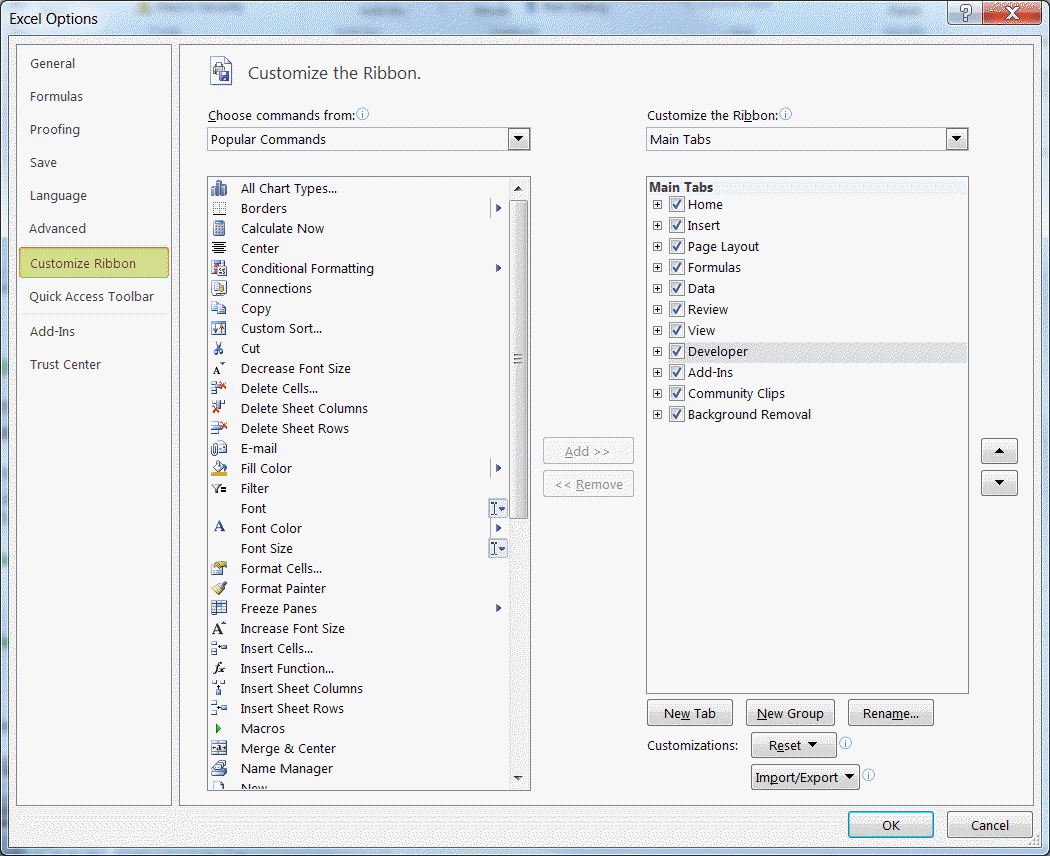
This will add the Developer tab to the ribbon.

Select the Developer tab | Code group | Macro Security button.
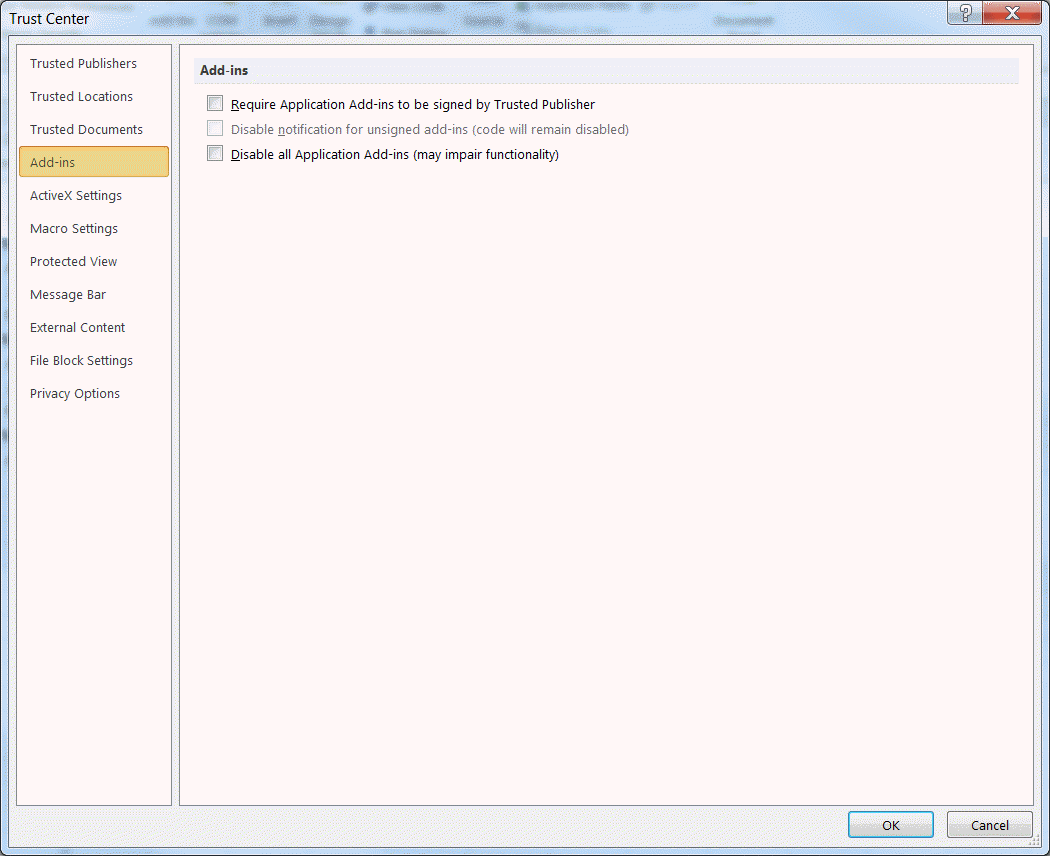
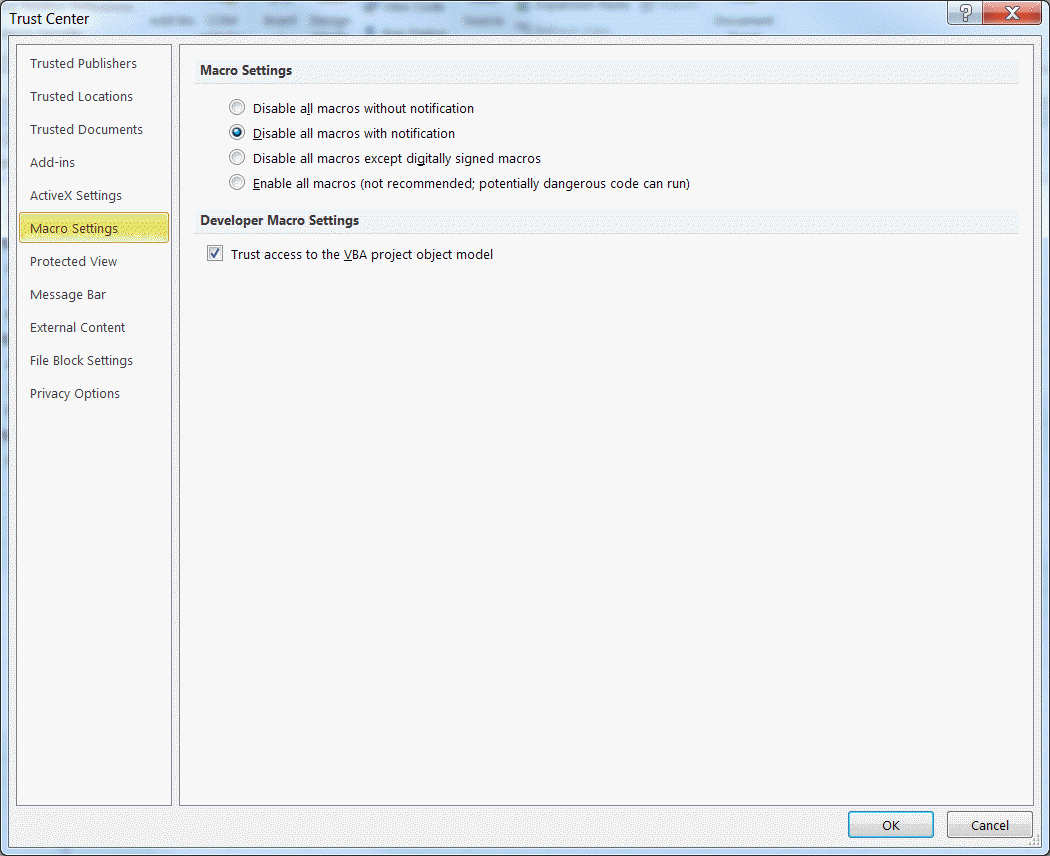
In the Trust Center dialog box, in the Add-Ins tab, make sure to uncheck all the checkboxes, and in the Macro Settings tab, ensure the Disable all macros with notification is checked.
In addition, if any of your add-ins access a Visual Basic Project, you must check the 'Trust access to the Visual Basic Project object model'. Unless otherwise noted, none of the add-ins on this website access the VB Project.
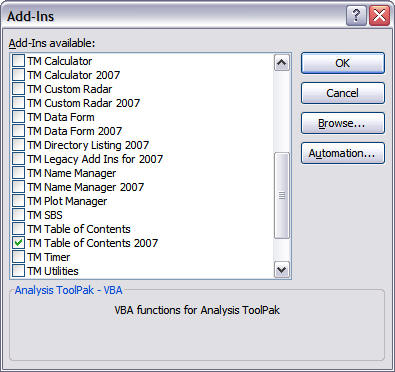
Select the Developer tab | Add-Ins group | Add-Ins button. In the resulting Add-Ins dialog box, make sure the add-in you want to load has a checkmark next to it.
The screenshots below are from Excel 2007 but apply equally to another program such as PowerPoint 2007.
Select Office | Excel Options.
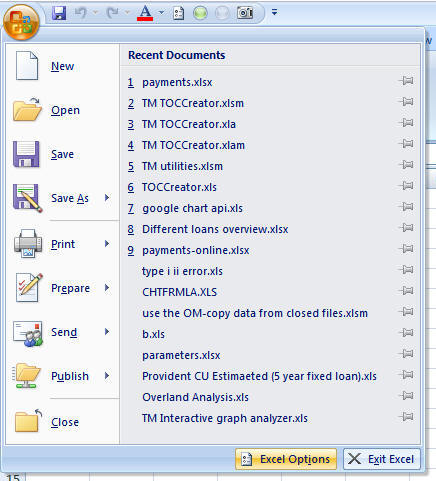
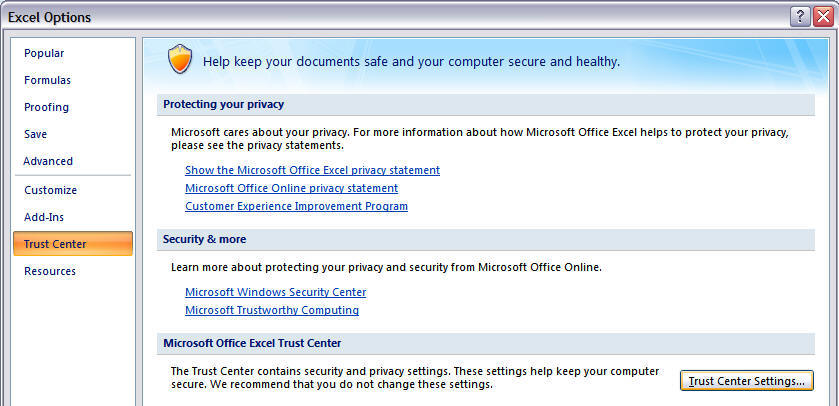
In the Excel Options dialog box, select Trust Center, then Trust Center Settings...
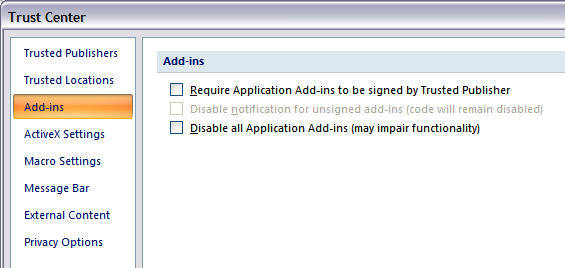
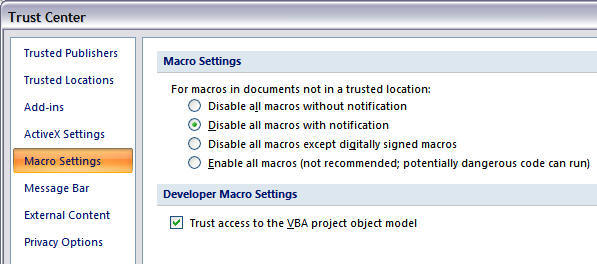
In the Trust Center dialog box, in the Add-Ins tab, make sure to uncheck all the checkboxes, and in the Macro Settings tab, ensure the Disable all macros with notification is checked.
In addition, if any of your add-ins access a Visual Basic Project, you must check the 'Trust access to the Visual Basic Project object model'. Unless otherwise noted, none of the add-ins on this website access any VB Project.
Select Office | Excel Options.
In the Excel Options dialog box, select Add-Ins tab. Then, in the Manage drop-down list select Excel Add-Ins. Finally, click the Go... button.
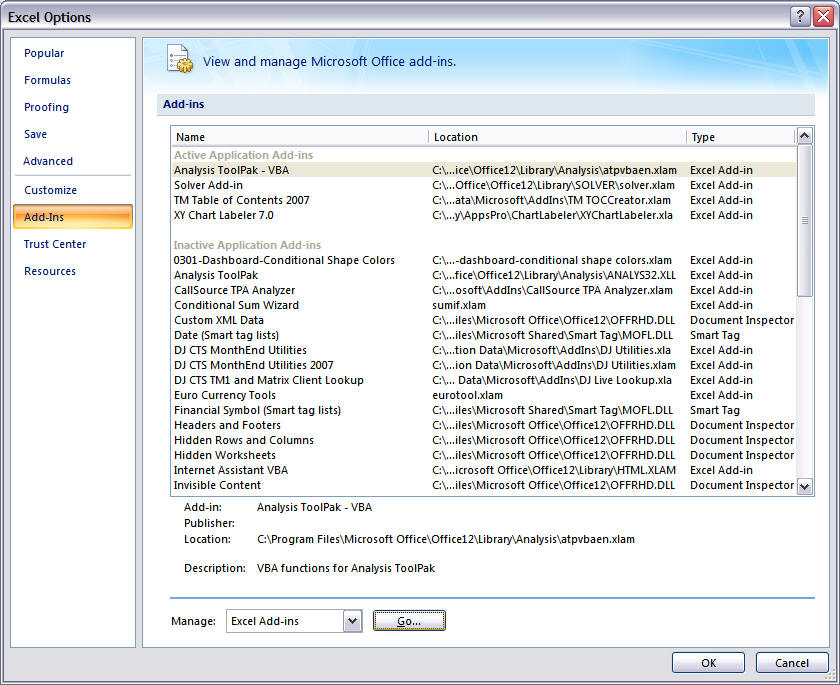
In the resulting Add-Ins dialog box, make sure the add-in you want to load has a checkmark next to it.
.
The screen shots below are from Excel 2003. The process applies equally to another program such as PowerPoint 2003.
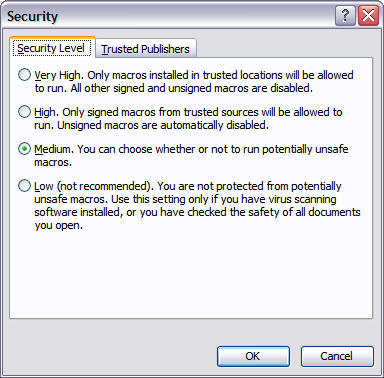
Set the security levels with Tools | Macro > Security...
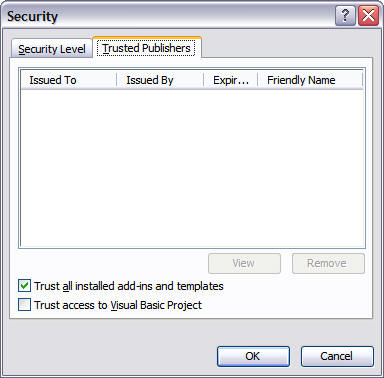
Set the Security Level to Medium so that you will be asked if a workbook with code should be opened with the macros enabled. You should also check the 'Trust all installed add-ins and templates'
If any of your add-ins access a Visual Basic Project, you will also have to check the 'Trust access to Visual Basic Project'. Unless otherwise noted, none of the add-ins from this website access a Visual Basic Project.
 |
 |
In an Office 2003 or earlier program: Select Tools | Add-Ins... In the resulting Add-Ins dialog box, make sure the add-in you want to load has a checkmark next to it.

