Solution 1: Base every reference on an explicitly declared object
Antonio on Apr 3, 2012:
Congratulations! it is great! (Althought, for additional reason, the late binding is not force any error in my case). Confirmed that solution is the step 1 ALL the time working from ACCESS to EXCEL. (It could work for first time, but never more before closing Access and reopen).
Ralph M on Jan. 22, 2012
This is a very informative page. I''ve been struggling with this problem for a while. Also, I now understand late binding, which is a concept I was familiar with, but never had an example to which I could relate. Thanks.
From John S in Jacksonville, FL on Nov. 22, 2011
Thank you so much for your very informative article on the difference between early and late binding. I am trying to drive various Excel processes from inside MS Access. Late binding now "lets go" of the Excel.exe instances as desired.
Again, thanks -- I have benefited many times from you excellent knowledge, this being yet another occasion.
From G on Nov. 9, 2011
AWESOME Information!! The Information regarding the Excel Process not closing was exactly what I needed. Your explanation and examples were terrific! Thank you!!
From Don C on Oct. 23, 2011
Hello
I am working on some VBA projects and found my way to your
explanation at
http://www.tushar-mehta.com/excel/vba/xl_doesnt_quit/
I am fairly new to the VBA, having come from a world of SQL, and I
don't think I would have ever figured this out. Thank you again for
the post and for specifically showing the changes in Red/Green.
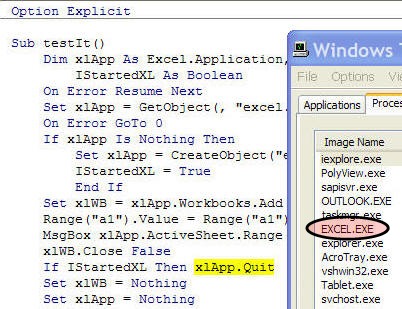
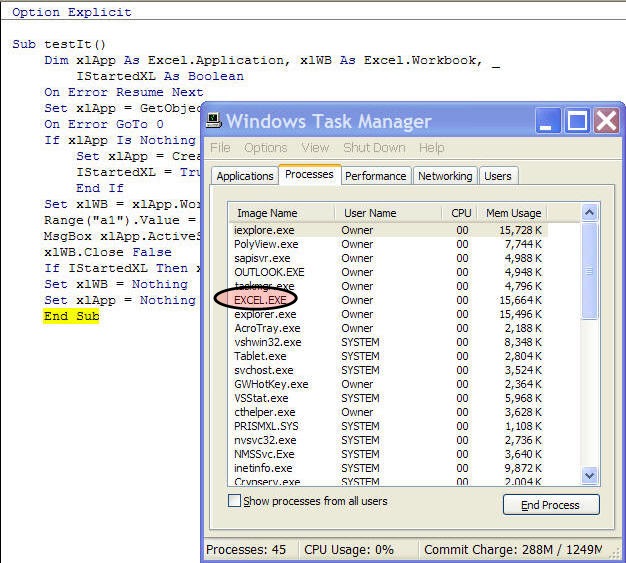
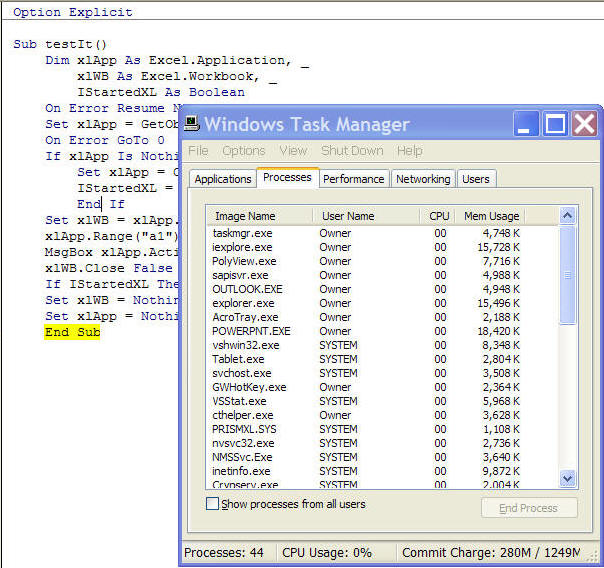
A program, such as MS Excel, run via automation, does not quit even after being told to go away and all references to it are set to 'nothing.' As shown in Figure 1 and Figure 2, the Windows Task Manager shows that Excel continues as a process even after the code controlling the automation completes. In addition to using up system resources, it can lead to subsequent problems.
In Figure 1, just prior to the execution of the xlApp.Quit statement, the Windows Task Manager window shows that the EXCEL.EXE process is running.
 |
However, as Figure 2 shows, even after execution of the Set xlApp=Nothing statement, the EXCEL.EXE process is still active. And the same will remain true after the controlling code has completely finished.
 |
The most common cause of the problem is a 'global' reference to the automated application. Unfortunately, under some circumstances it is possible to directly refer to an entity (property/method/object) of the automated object. This reference effectively is global to the calling application. Hence, the reference remains in place as long as the calling program is active. Consequently, the operating system will not end the automated application while the caller is active. In Figure 3, the line in red is a reference to the Excel Range property. However, it is not qualified with either xlApp or xlWB. Consequently, it is global to the calling program. This global reference to an Excel object forces Excel to stay active until the caller itself terminates execution.
Option Explicit Sub testIt()
Dim xlApp As Excel.Application, _
xlWB As Excel.Workbook, _
IStartedXL As Boolean
On Error Resume Next
Set xlApp = GetObject(, "excel.application")
On Error GoTo 0
If xlApp Is Nothing Then
Set xlApp = CreateObject("excel.application")
IStartedXL = True
End If
Set xlWB = xlApp.Workbooks.Add
Range("a1").Value = Range("a1").Value + 1
MsgBox xlApp.ActiveSheet.Range("a1").Value
xlWB.Close False
If IStartedXL Then xlApp.Quit
Set xlWB = Nothing
Set xlApp = Nothing
End Sub
|
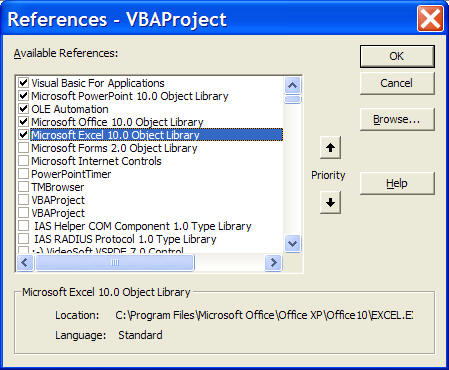
Of course, to use the above code one must set a reference to the Excel Object library as shown in Figure 4. And, that, in itself is a clue on one possible way to avoid the problem! We will see a solution based on not setting a reference to the library a little later.
 |
Ensure that every property / method / object within the automated application is referenced through -- and only through -- an explicit variable declared in the calling program. That will ensure that there is no behind-the-scene direct reference from the calling program to the automated application. To use this method with the code in Figure 3 the correct approach is shown in Figure 5. The offending statement (in red in Figure 3) is replaced by the statement in green in Figure 5.
Option Explicit Sub testIt()
Dim xlApp As Excel.Application, _
xlWB As Excel.Workbook, _
IStartedXL As Boolean
On Error Resume Next
Set xlApp = GetObject(, "excel.application")
On Error GoTo 0
If xlApp Is Nothing Then
Set xlApp = CreateObject("excel.application")
IStartedXL = True
End If
Set xlWB = xlApp.Workbooks.Add
xlApp.Range("a1").Value = _
xlApp.Range("a1").Value + 1
MsgBox xlApp.ActiveSheet.Range("a1").Value
xlWB.Close False
If IStartedXL Then xlApp.Quit
Set xlWB = Nothing
Set xlApp = Nothing
End Sub
|
Now that there is no implicit connection established between the caller and the called program, the automated application (MS Excel in this example) correctly goes away as shown in Figure 6.
 |
Establishing a compile-time reference to the automated application as shown in Figure 4 is useful for many reasons. However, one of the few downsides is that it allows the use of unqualified statements, which, in turn, lead to unintended connections between the calling program and the automated application. One way to avoid such unqualified references, or at least test for them, is to remove the compile-time reference. That will, of course, require that the use of the Excel.Application and Excel.Workbook objects be replaced by the generic Object data type.
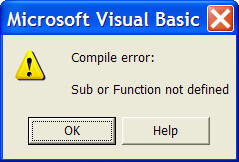
The advantage is that the compiler will flag unqualified references as compile-time errors as shown in Figure 7.
|
The correct code using late binding is shown in Figure 8.
Option Explicit Sub testIt()
Dim xlApp As Object, _
xlWB As Object, _
IStartedXL As Boolean
On Error Resume Next
Set xlApp = GetObject(, "excel.application")
On Error GoTo 0
If xlApp Is Nothing Then
Set xlApp = CreateObject("excel.application")
IStartedXL = True
End If
Set xlWB = xlApp.Workbooks.Add
xlApp.Range("a1").Value = _
xlApp.Range("a1").Value + 1
MsgBox xlApp.ActiveSheet.Range("a1").Value
xlWB.Close False
If IStartedXL Then xlApp.Quit
Set xlWB = Nothing
Set xlApp = Nothing
End Sub
|
Brought to my attention by Greg Truby is this comprehensive article from Microsoft that address other types of problems that arise from unqualified global references
INFO: Error or Unexpected Behavior with Office Automation When You Use
Early Binding in Visual Basic
http://support.microsoft.com/default.aspx?scid=kb;en-us;319832