You are on the Home/Excel/Add-Ins/Custom Radar Chart page
Google
Web This Site

Custom Radar Chart

Introduction
Using the Add-in
The Data Layout
Adding New Data
The Default Excel Radar Chart
Download files
Additional Documentation

Excel 2003 or earlier:

Download the files
Install the add-in

Excel 2007:

Download the files
Install the add-in

Introduction

A Radar chart, also known as a spider chart, visually compares several entities (products, organizations, investment opportunities, or even people) on multiple dimensions.  For example, a manager of a diagnostic imaging (radiology) center might want to compare her facility with the competition on dimensions related to patients such as Time To Appointment, Report Turnaround Time, No Show Rate, and Wait Time

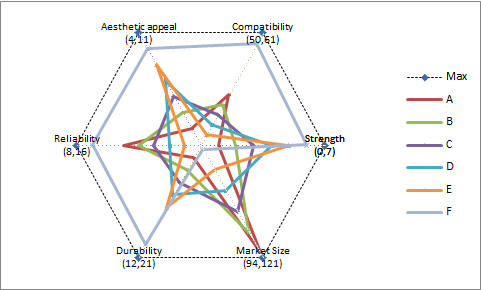
Or, as in the example shown on the right, 5 products, A, B, C, D, and E, are compared on 6 different attributes: Aesthetic Appeal, Compatibility, Strength, Market Size, Durability, and Reliability.  The custom radar chart lets one easily compare all the products along each of the dimensions on interest.

Why use an add-in when Excel itself has a Radar chart capability?  Essentially, it plots all the dimensions on a single scale rather than scaling each dimension according to its own scale.

The compressed (zipped) file

Using the Add-in

Once the add-in is installed, in Excel 2003 or earlier, use TM | Charting > Custom Radar...  
In Excel 2007 use TM | Charting | Custom Radar


This will bring up a form where one specifies the varies elements needed to construct the chart.  Each of the items is explained in more detail below.


The Data Layout

The add-in creates a chart in which each dimension is plotted according to its own scale. This allows a meaningful comparison when the different dimensions have differing measurement scales.  For example, in the diagnostic imaging example, Report turnaround time might be measured in hours, the No show rate in percent, and the Time to appointment in days or weeks.

For our product example, the table to the right shows how each product measured along each dimension.

It is important to lay out the data as shown.  Each column represents a particular attribute or dimension.  Each row represents one item (product, imaging center, etc.)

In addition, the add-in allows user-specified parameters for the minimum and maximum values for each dimension.  These are provided through two ranges, one for the minimum values and the other for the maximum values.

Finally, the SCALING option controls on whether the different dimensions are normalized or not.  If SCALING is FALSE, the software creates a plot in which each axis is scaled according to its own min/max values (as specified in the table above).  This implies that the range of each axis determines its visual importance, as shown on the right

On the other hand, when SCALING is TRUE, each axis is independently scaled to be between 0 and 1.  The result is on the right


Adding New Data

The easiest way to add new rows or columns (dimensions) is to delete the existing chart, add the relevant data, and create a new chart.


The Default Excel Radar Chart

Contrast this with the default XL radar chart, which has only one axis for the numerical data.  Consequently, the scale that XL uses must accommodate the largest values.  The result is that those attributes with small values (such as Strength above) are totally overwhelmed by the something like Market Size


Additional Documentation

The only documentation currently available is this webpage.  In this version of the add-in, the Help button on the TM Custom Radar form does nothing.