Infinite opportunities?  Endless problems?  Limited resources?  Talk to us!
Operations
Consulting
Software
Consulting
Publishing and
Training
Applied
Solutions
Excel add-ins
and tutorials
Charts Excel and VBA
Case Studies
VBA
tutorials
PowerPoint
Add-Ins
Miscellenia
You are on the Home/Excel/Add-Ins/Chart Image to Data page
About this site

What's new

Google
Web
This Site


Keywords: chart image to data

Given only an image of a chart, estimate the data associated with it

This add-in is designed for those instances when one has an image of a chart but not the underlying data.  Once the image is in electronic form, this add-in can help estimate the values of the associated data.

The compressed files

If you need help downloading and installing the add-in, read on.

  1. Download the tm_chart_image_to_data.zip zipped file by clicking the link above.
  2. Use WinZip (or a competing product) to extract the TM Chart Image to Data.xla file.
  3. Run Excel and select Tools | Add-Ins...  Click the Browse... button.  Locate the file extracted in the previous step.  Ensure that the 'TM Chart Image to Data' entry in the Add-Ins list has a checkbox next to it.
  4. The add-in will add a new menu item TM to the Worksheets menu bar.
  5. Under TM, you will find a Chart Utilities | Data from Chart Image... entry.  Select it to bring up the dialog box.

Using the add-in

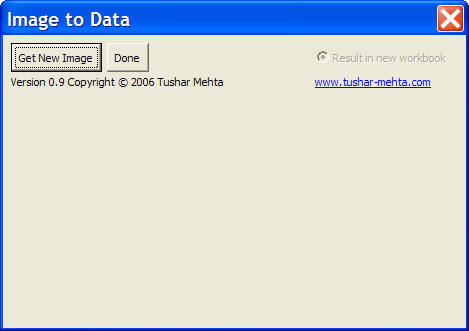
Upon selecting TM | Chart Utilities > Data from Chart Image... the default dialog box will show up.

This add-in only works with a chart that has linear axis.  That rules out its use with any variant of a log chart or other charts with a non-linear axis.  Note that a linear axis is not the same as a linear series.  The plotted series can be any kind.  It is just the axes that have to be linear.

Works with Excel 2000 (or later) only.


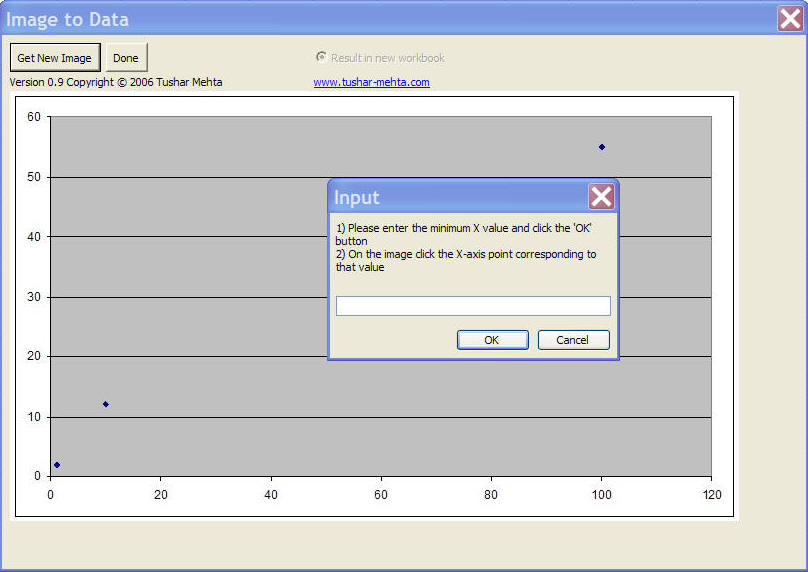
Click the Get New Image button to load a new image of a chart.  This will also trigger a calibration process.  This will help the add-in track how the various points on the image map on to the actual values of interest.  This four step process separately identifies each of the X-minimum, X-maximum, Y-minimum, and Y-maximum values.

The image below shows the first point to be calibrated.  In the first of four steps, enter the minimum x value (zero in this case) and after the Input dialog box closes click on the x-axis location that corresponds to this value.  The next 3 steps in the calibration process identify the other three critical locations.

Once all four points are calibrated, click on the form to get the corresponding (X, Y) values.  The results will be in a new workbook.


For custom technology solutions, operations consulting, or training contact web-underscore-contact@tushar-hyphen-mehta-dot-cee-oh-em.
By accessing any page or link on this web site other than this page, you agree to the terms and conditions.

Ads from amazon.com

[Optional] Survey (current rating of site: 3.7 out of 4)  If you will take a moment to provide your comments, it will help improve the site both for you, and for other visitors.

On a scale of 4 (just what I need)
to zero (totally useless)

How do you rate the information

on this page?

  on this site?

[Optional]

Your name
Your email address
Other comments
 
Monitor page
for changes
    
   it's private  

by ChangeDetection
A comment selected at random:


Copyright © 2000-2008 Tushar Mehta.
Send comments and suggestions about the web site to webmaster@tushar-hyphen-mehta-dot-cee-oh-em
Last edited April 14, 2008