Obviously, moving the location of the data source is not something that should happen on a regular basis. However, there are times when it becomes necessary. One of those times will be when the files associated with this tutorial are downloaded by someone. Clearly, the location of the data source on their machine will be different than on the machine where the files were created. Another instance will be if they implement cascading queries for their organization. Typically, their testing will be done on their own workstation but the eventual location will be a network server. Of course, once the data source is on a network server, the need to change the location will be minimal.
There are three files in the downloadable zip file. The two analysis files are cascading query.xls and cascading query source.xls. The third file, named updatesource.xls, contains code to fix source links. Put all the files in some folder on your machine. As the reader must have guessed, cascading query source.xls is the database file. There is nothing but data in it. The updatesource.xls file simplifies the task of updating the datasource links. See the section Restoring the link to the data source.
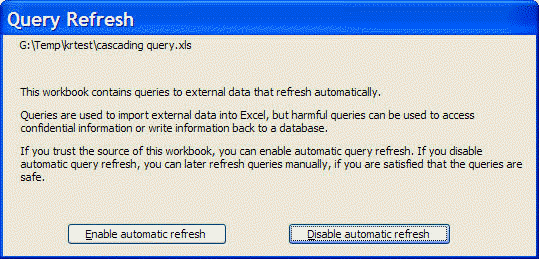
Open the file cascading query.xls file. The first thing that should happen is an alert about whether Excel should refresh queries. Select 'Disable automatic refresh'. After all, we know the refresh will fail until we fix the link to the data source.
The cascading query.xls looks like:
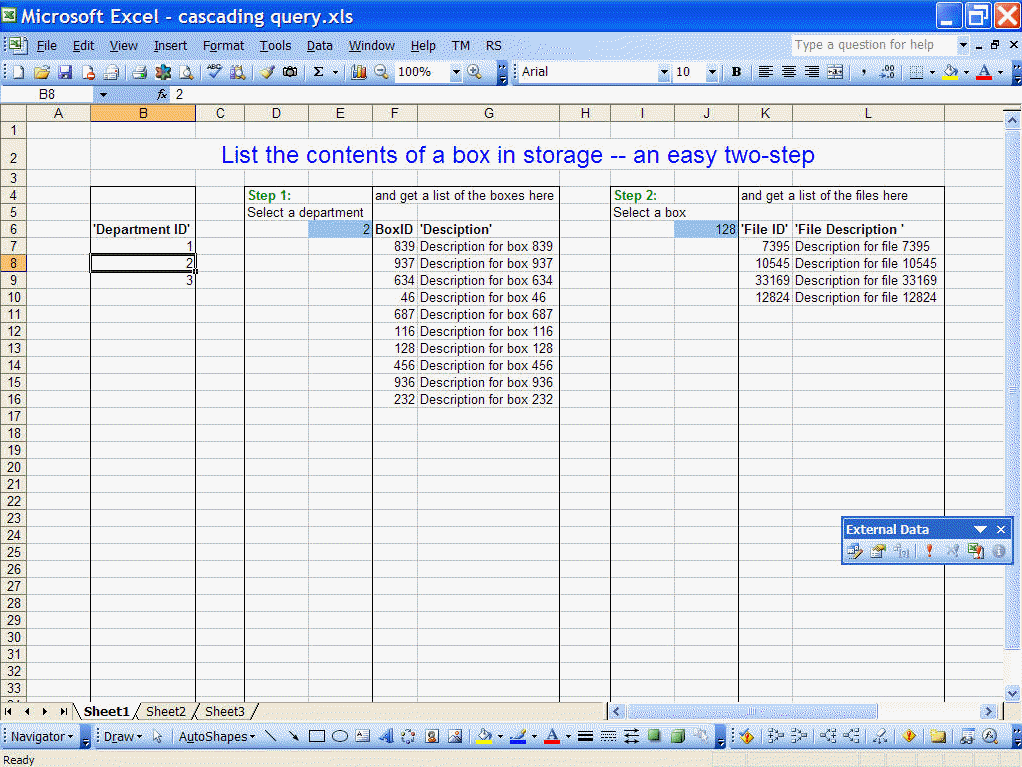 |
It contains three lists. Column B contains a list of all departments. Columns F:G a list of boxes in the department and columns K:L a list of all files in a particular box.
As it turns out, changing the data source through the user interface is cumbersome and error prone. By contrast, changing it programmatically is very simple. So, rather than describe the user interface method, the download zip file contains a file with VBA code to update the link. Open updatesource.xls. If you get a warning about "This file contains potentially malicious macros" you must select the Enable Macros button.
Switch back to the cascading query.xls workbook. The active sheet should be the one containing the three queries. Use ALT+F8 to access the Macros dialog.
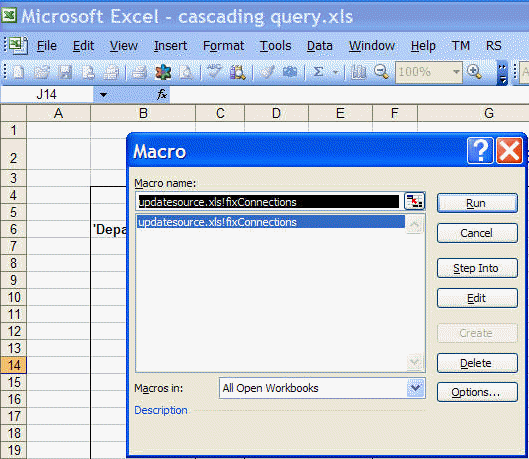
Select the updatesource.xls!fixConnections entry and click the Run button. You will be asked for the new data source. Locate and click on the cascading query datasource.xls file. Once the macro completes save the cascading query.xls file, preferably under a new name. Close the file and reopen it. You must save, close, and reopen the file. Otherwise, the queries will not work.
This time around, when the Query Refresh dialog box pops up click Enable Automatic Refresh.

