Web-based solution
There are many instances when one wants to create a dependent drop down list such that the choices in that list depend on an earlier selection in another drop down list. One example is first selecting a category of food (vegetables, fruits, etc.) from one drop down list. This selection changes the available choices in the next drop down list so that it lists individual vegetables or fruits.
A cascading query is the same concept except that it works with a relational database. It uses the results of one query to adjust the criteria for a subsequent query. One example is shown below. First, we want a list of all departments. When a selection from that list is made, we want a list of all boxes in storage for that department. Finally, when one selects a particular box, we want a list of all the files in that box.
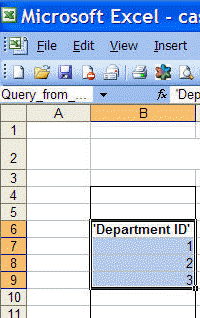
| Figure 1 shows the
result of a query that returns a department list.
|
|
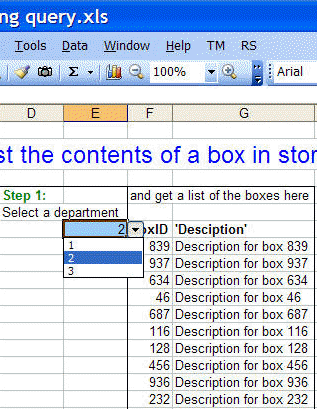
| Figure 2 shows a
drop-down selector that lets one select a department based
on the results of the previous query. It also shows the result of a parameterized query based on the selection of a department. This query output lists all the boxes in storage for the selected department. |
|
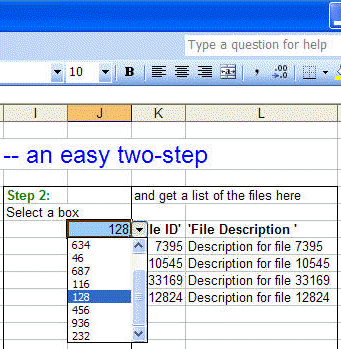
| Figure 3 shows a
drop-down list selector that lists all the boxes in storage,
a list returned by the previous query. It also shows the result of a parameterized query based on the selection of a department and a box. |
|
In some ways, given the separate database and the separate query workbook, and especially if multiple people are likely to use the final system, it might be better to implement this as a system on the Internet or the organization's Intranet. For one such template see Building cascading queries
The first query is a standard MS Query-based query. For more on how to create queries see Building and using a relational database in Excel (with a little help from MS Query) and specifically Query 1 -- A simple table linking multiple tables in the relational database, though this time around there is just one table.
The drop down box in Figure 2 (cell E6) relies on a named formula (Insert | Name > Define...) that contains all the departments IDs returned by the first query.
DeptIDList =OFFSET(Sheet1!$B$7,0,0,COUNTA(Sheet1!$B:$B)-2,1)
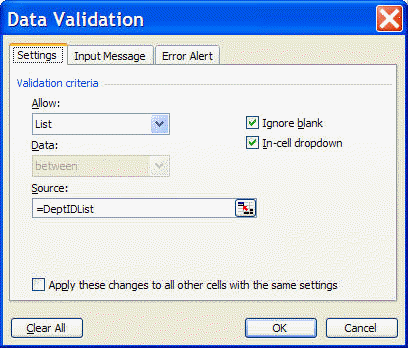
| E6 actually contains a
data validation condition. Select Data | Validation...
and set the dialog box as:
|
|
The query that returns the list of boxes is a parameterized query that uses E6 for the value of its parameter. For more on parameterized queries see
Query 4 -- A parameterized query to list of customers in a zip code that is specified dynamically
and
The drop-down capability in cell J6 uses an approach similar to that for E6 except it refers to BoxIDList rather than DeptIDList.
BoxIDList =OFFSET(Sheet1!$F$7,0,0,COUNTA(Sheet1!$F:$F)-1,1)
The third query is a parameterized query that uses two parameters for its work, the Department ID and the Box ID.
Please read this very important section, Moving the database, before downloading the zip file.
Solutions that rely on Excel-native functions are not as flexible as the method described above. One approach that requires data layouts customized to a specific cascading configuration is demonstrated by Dick Kusleika at http://www.dailydoseofexcel.com/archives/2004/05/11/conditional-data-validation/ and by Debra Dalgleish at http://www.contextures.com/xlDataVal02.html A somewhat more flexible solution uses a single table but is still restricted in that it requires the table to be sorted by one particular key. Debra demonstrates that approach in http://www.contextures.com/xlDataVal13.html
cascading drop-down, list