|
In addition, since the solution uses shapes and not Excel
objects, the 56 color limit imposed by Excel’s palette does not apply to this
solution.
The rest of this article describes the various steps needed
to implement the above, which, essentially, is the ability to implement
conditionally colored shapes. The final
sections discuss the limitations of this approach and summarize the tip.
The concept
There are several pieces that must come together before one
can pull off the above:
1)
Create
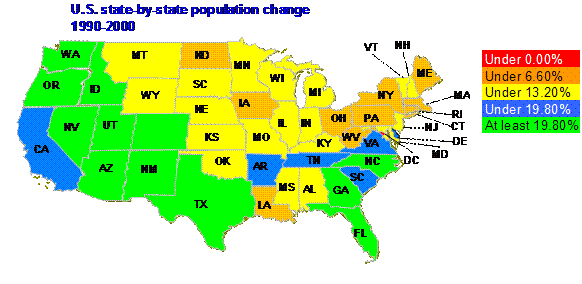
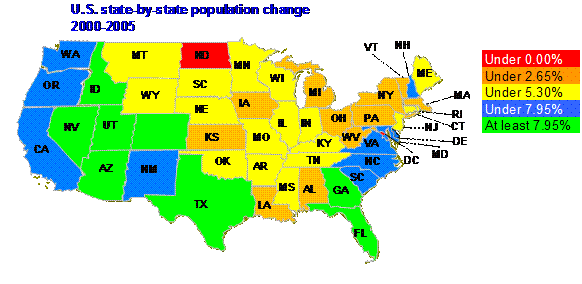
the desired graphic using as many shapes as needed. In the example of the U.S. mainland map
there are 49 individual freeform shapes (from the Drawing toolbar), each of
which is shaped like and represents a specific state. These shapes can optionally be named
something other than the default name Excel picks, which is Freeform {n}, where n is a number
assigned by Excel.
2)
Identify
the cells in the worksheet that will contain values that will decide the color
of the associated shape. Name each of
these cells.
3)
Create
a table that defines the link between each of these names used for the cells
and the shapes.
4)
Create
a table that defines how the values in the cells will map to the colors of the
shapes.
5)
Identify
additional conditions that should trigger an update of the colors of the shapes
6)
Add
the minimalist code that uses the information provided in steps 1 through 4 to
manage the colors of the shapes. By
using the above approach, the code is very generic and contains nothing
specific to any particular solution. All
of the definitions are in the tables and cells identified above. Hence, one need know no programming to use or
modify this technique.
Step 1: Create the desired image using individual shapes
This would typically be done through the objects on the
Drawing toolbar. The final image should
consist of individual shapes where each shape can be colored separately.
|
For the map example, it made sense to start with an
outline map of the US and add one freeform shape for each state customized to
look like the state boundary (Drawing toolbar | AutoShapes | Lines >
Freeform). Format the shapes as
desired. In the example, the line
color was set to grey. For the very intertwined boundaries of West
Virginia, Virginia, Maryland, and the District of Columbia the line width was
reduced to 0.25 pt and simply eliminated for DC itself.
|

|
Each state name is a textbox from the Drawing toolbar. For those states where the name would not fit
inside the state boundary, a connector (from the Drawing toolbar: AutoShapes |
Connectors > Straight Arrow Connector) linked the shape to the name. Enter the desired name in each textbox. The example contains the commonly used 2
letter abbreviations of U.S.
states.
The name and shape for each state (and optionally the
connector) were grouped together (select the 2 or 3 shapes as appropriate,
right click and from the context menu select Grouping > Group). The net result: 49 grouped objects (one for
each of the 48 mainland states and one for the District of Columbia) and, of course, the
outline. In the image fragment below, the shapes and labels associated with both
Michigan and Vermont and the connector associated with
the latter have been moved off-kilter to show the individual groups. A view of the outline map can be seen
underneath the colored shapes.

Step 2: Create, identify and name the cells associated with each shape
|
The data can be organized anywhere in the
worksheet. For convenience, and
because the format suited this particular example, the data for the states
were put in three columns: A, B, and C. A contained the state name, B the
population change from 1990 to 2000 and C the change from 2000 to 2005.
|

|
|
Column D contained the data
selected for display (the values from either column B or column C). Cell D23 had a data validation list to
selects one of the two columns.
|

|
An out-of-the-way cell (M24) identified the selected column
with the formula =MATCH($D$23,$B$23:$C$23,0)
Cells D24 on down contained the data corresponding to the
selected column. D24 contained the
formula =INDEX(B24:C24,1,$M$24) and D24 was copied as
far down as there were data in column A.
|
Finally, name each of the cells in column D starting
with D25 (Insert | Name > Define…).
Any name will do. In the
context of the map example, it made sense to use the 2 letter abbreviation
commonly used with U.S.
states.
|

|
Step 3: Create a table identifying which cell is associated with which
shape
Next, create a relationship between the named cells from step
2 and the freeform shapes of step 1.
|
In some out-of-the-way columns (in the example that
happens to be columns P and Q), enter all the cell names and the associated
shape name.
|

|
To find the shape name, select the grouped object,
pause and then select the shape itself. For example, Washington corresponds to Freeform 2.
Name this range (i.e., the cells in P:Q that contain
data) MapNameToShape
with Insert | Name > Define… To
have the name automatically adjust to changes in the table, in the Define
Name dialog box, in the Refers To field, enter the formula
=OFFSET(Sheet1!$N$5,0,0,COUNTA(Sheet1!$N:$N)-1,2).
|

|
Step 4: Create a table identifying what color to use for what value in the
cells
The next step is to identify what colors correspond to what
value in the various cells. Create a
table that contains this information.
Note the somewhat unusual structure.
The first column, which contains the threshold values, has one fewer
entries than the second column, which contains the RGB color codes. Column 1 starts in the 2nd row of
the table while column 2 starts in the first row. This is because of how the data in the table
are used. The third column contains an
explanation of how the values are used.

This table can be located anywhere but it must be named MapValueToColor. It, like the previous table, can be made to
dynamically adjust to changing data. In
the Map example, the name refers to the formula =OFFSET(Sheet1!$K$6,0,0,COUNTA(Sheet1!$K:$K)+1-2,2)
Also, the threshold values in the first column of the table can
be static or they can change from one data set to the next. In the Map example they do change depending
on which data set is plotted. Since the
2 data sets (columns B and C) are sufficiently different, the threshold values
are linked to the national average. The
thresholds are 0%, half the national average, the national average, and 1-1/2
times the national average.
The software also implements a new user defined function
called VBA_RGB. This allows the
spreadsheet user to define colors with exact RGB values. For example, the color for values under 0% is
RGB(255,0,0) or red. Consequently, cell L6 contains the formula =VBA_RGB(255,0,0). The
color for values between 5.3% and 7.95% is light
blue. Hence, cell L9 contains the
formula =VBA_RGB(0,127,255).
Step 5: Identify additional conditions that should trigger an update of the
colors of the shapes
One of the last pieces we need to address is a “global”
trigger. There are circumstances when a
change to a single cell requires a reexamination of all the shapes and their
associated cells. In the Map example,
this would be a change to cell D23.
Selecting a different data set does not trigger any native Excel event
that would cause the code (which we will add in the next step) to recolor the
different shapes. So, we identify this
global trigger through one cell named UpdateAllCells. In the Map example, this is T5. The content of the cell is the address of the
cell that serves as the global trigger.
In the Map example, that is done through the formula =CELL("address",D23)
To include multiple cell addresses, separate them with
commas or any other delimiter that appeals.
Step 6: Copy and paste the code needed to bring together the results of the
above steps
The final piece is to add the code. In the code module for Sheet1 (assuming
Sheet1 is the one with the model described above):
Option Explicit
Private Sub Worksheet_Change(ByVal Target As Range)
Dim aCell As Range
For Each aCell In Target
If InStr(1,
Range("UpdateAllCells").Value, _
aCell.Address(True,
True), vbTextCompare) > 0 Then
updateAll
Else
CheckColor aCell
End If
Next aCell
End Sub
In a standard module, add the following:
Option Explicit
Sub CheckColor(aCell As Range)
Dim aShp As Shape, TargCell As Range
On Error GoTo Catch1
Set TargCell = Range("MapNameToShape").Columns(1).Find( _
aCell.Name.Name, LookAt:=xlWhole)
Set aShp = ActiveSheet.Shapes(TargCell.Offset(0, 1))
GoTo Finally1
Catch1:
Exit Sub
Finally1:
On Error GoTo 0
Dim ColorCode As Long
If aCell.Value < Range("MapValueToColor").Cells(2, 1).Value Then
ColorCode = Range("MapValueToColor").Cells(1, 2).Value
Else
ColorCode = Application.WorksheetFunction.VLookup( _
aCell.Value, Range("MapValueToColor"), 2, True)
End If
aShp.Fill.ForeColor.RGB = ColorCode
End Sub
Sub updateAll()
Dim aCell As Range
For Each aCell In Range("mapnametoshape").Columns(1).Cells
CheckColor
Range(aCell.Value)
Next aCell
End Sub
Function VBA_RGB(R As Byte, G As
Byte, B As Byte) As Long
VBA_RGB = RGB(R,
G, B)
End Function
Limitations
Three important limitations come to mind.
First, I am a strong proponent of separating code and
data. Ideally, the code presented in
Step 6 above would be in an add-in.
However, including instructions on creating an add-in is outside the
scope of this tip.
Second, in many instances, the cells that are linked to the
various shapes will have formulas in them.
In such cases, since no one would enter data into these cells directly,
the worksheet Change event used in the code above would never be
triggered. One might want to consider
the Calculate event. It, of course, does
not indicate which cells were changed.
Integrating that event into the model presented in this tip, while not
difficult, would unnecessarily complicate the implementation without adding any
value to the concept of conditionally colored shapes.
Third, it is relatively easy to imagine a scenario where the
cell that is linked to a particular shape cannot
be named. Instead, one might want to
identify it by the value either in itself or in an adjacent cell. In the context of the Map example, instead of
having the data for the two periods in two columns, one can easily create a
PivotTable that includes the state as a row field and the population change as
the data field. In this case, it would
not be possible to name the cells in the PivotTable since we cannot be sure
that a particular cell will always refer to the same set after the table is refreshed. Instead, ne might
want to create a scenario that indicates something like this: Look for the
token “Washington”
in this column. Then, use value of the
cell next to it.
Summary
This tip demonstrates a very effective way of visually
displaying information using a graphic image that is the most appropriate to
the subject at hand. At its core, the
idea is to establish two linkages. The
first establishes a link between a specific worksheet cell and a specific shape. The second establishes a link between the
possible values in the cell and the corresponding color used to color the
shape. The rest, as the cliché goes, is
only details. Of course, this tip goes
through the details in detail and includes a functioning example.
References
I don’t believe I have seen any example of conditionally
colored shapes. That, of course, does
not mean they do not exist. Just that I
haven’t seen any. |