Do you want to schedule a PowerPoint presentation to start at a particular time? Cycle repeatedly for a certain time and then quit automatically? Here's a set of instructions I put together for someone to schedule PowerPoint shows about artists. Each show was a biographic sketch about one artist and would run automatically on the artist's birthday. It's done with the tools already available on your computer. While the snapshots below were on a computer running Windows 98SE and PowerPoint 2000, any machine which has the Windows Task Scheduler and PowerPoint (or the PowerPoint viewer) will do!
| First, in
PowerPoint, open the presentation you have and set it
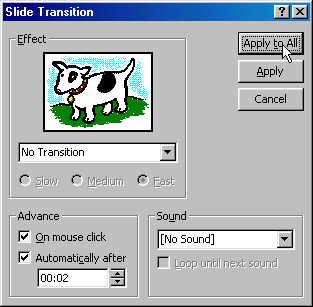
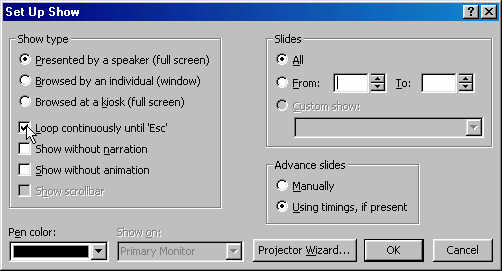
for automatic slide transitions and to loop
continuously. Save the file and close PowerPoint
|
|
| Next, in Windows, open the Task Scheduler by double clicking its icon in the System Tray |
 |
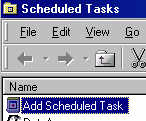
| In the Task Scheduler, double-click the 'Add Scheduled Task' entry. |
 |
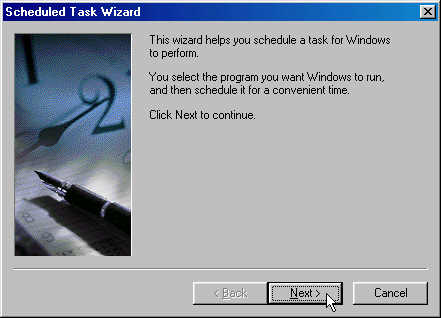
In the first step of
the Scheduled Task Wizard, click the
 button button |
 |
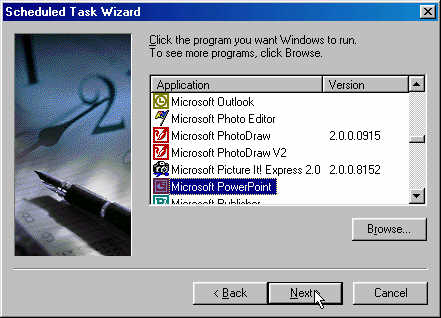
In the second step,
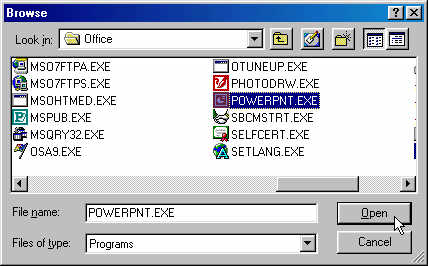
select the PowerPoint program. If necessary, click
the
 button and locate the
PowerPoint program. Click the
button button and locate the
PowerPoint program. Click the
button |
 |
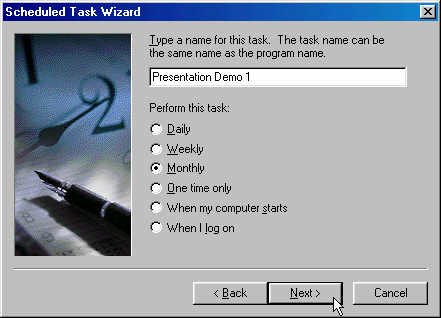
| In the next step of
the wizard, name of the task being created, set the
schedule to monthly, and click the
button |
 |
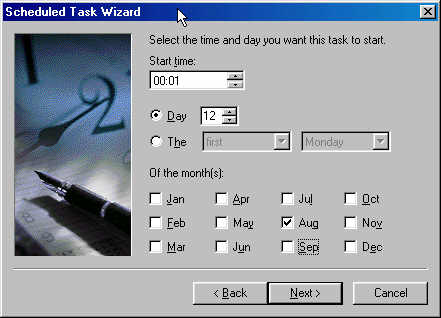
| In the next step,
set the time that the presentation should start.
Make sure you select a time that the computer will be
running. Set the date to the artist's birth date.
Ensure that the only month that is checked is the one
that contains the birthday. Click the
button |
 |
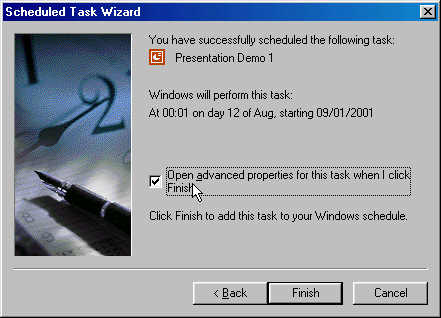
In the final step,
make sure you check the 'Open Advanced Properties...'
box. Click the
 button button |
 |
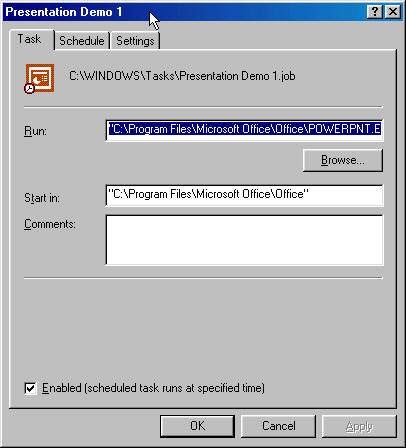
| In the next dialog
box, titled 'Presentation Demo 1' (the name selected in
the third step of the wizard above), in the Task tab,
click the
button, and find the
PowerPoint program. |
|
| The 'Run' box should now contain the name of the PowerPoint program on your computer. |
 |
| Click in the Run box. Go to the end of the program name, and type in /s "<your .ppt filename>" Note that the /s is not in quotes, the filename is! |
|
| Delete the contents of the 'Start in' box |
 |
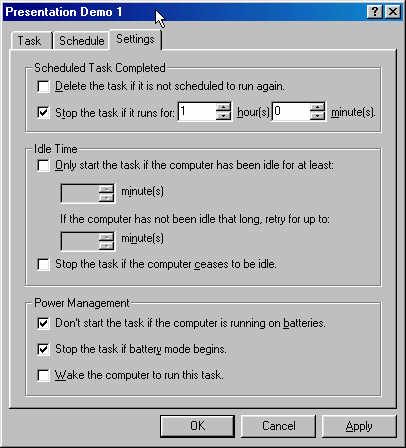
| In the Settings tab, check the box to terminate the program after a certain time has elapsed. Set the time in hours and minutes as desired. |
 |
| Click OK and you are all set. |
.