From Dave U on November 19, 2012:
As a programmer trying to master the nuances of class modules, I found this tutorial a very helpful step in ""connecting the dots"". Thank you
Object oriented programs such as Microsoft Excel flag the occurrence of certain activities through a mechanism known as raising an event. At the same time, a developer can write code that waits for specific events to happen. VBA and the operating system are responsible for matching events raised by a program with procedures waiting on an event. When there is a match the event procedure is executed. For example, Excel raises an event called Calculate whenever it completes a recalculation. If a procedure was waiting for this event to happen, the code in the procedure will be executed each time Excel raises the Calculate event. In certain other instances, Excel will raise an event that includes information about the object affected by the event. For example, the SelectionChange event procedure allows the developer to identify which cell was selected. In the case of some other kinds of events, it is possible to tell Excel that the developer wants it to cancel the user action. For example, in the BeforeClose event procedure, one can tell Excel to cancel the pending close operation.
This capability is not unique to Excel; in fact, it is intrinsic to object oriented systems. Developers can declare and raise their own events. The code unit raising an event is called the event source. Other procedures can wait for these user events; the operating system will ‘wake up’ these procedures each time the event occurs. A code unit that waits for an event to occur is called an event sink. Keep in mind that certain user acts may requires multiple ‘behind the scenes’ steps. If an event is associated with those individual steps, each of those events will be raised in sequence. For example, if a user changes the active sheet, the SheetDeactivate event will be raised before the SheetActivate event. However, there is no such rule about procedures waiting for an event. If multiple procedures are waiting for the same event, there is no guarantee that the procedures will be executed in any particular sequence. The sequencing issue gets muddier if several procedures are waiting for several different events. Even if those events are triggered in sequence, there is no guarantee that the various procedures run in any kind of sequence.
The bottom line is that the developer should make no assumption about the sequence in which procedures are executed in response to events.
In the next section we will look at a very simple example of writing an event source and an event sink.
Events are a part of the OOP world. Both creating an event source and an event sink require the use of a class module. We will first add the event source – since it will be required to create the event sink. Start with a new class module. Name it SourceClass and enter the code in Code Sample 1. An event is declared with the Event keyword. If the event supports an argument it’s declared very much like a procedure declaration. The public method raiseEvent will raise both events in a predetermined sequence. The parameter for the 2nd event is the second value of the current time.
Option Explicit
Event SomeEvent()
Event EventWithParam(someParam As Integer)
Public Sub raiseEvents()
RaiseEvent SomeEvent
RaiseEvent EventWithParam(Second(Now()))
End Sub
Code Sample 1 – class module SourceClass
The event sink will be a separate class module named SinkClass. In it, first, declare an object of the type SourceClass.
Option Explicit
Dim WithEvents anObject As SourceClass
Code Sample 2 – part of class module SinkClass
Note the use of the WithEvents keyword. Once the variable is declared correctly, the dropdown box at the top of the programming pane will list anObject together with the default choices of (General) and Class. See Figure 1.
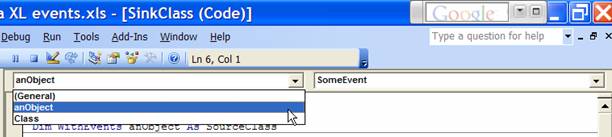
Figure 1
The right-hand drop down lists all event procedures available for that object as shown in Figure 2. Select both, one at a time.

Figure 2
Flesh out the code in the skeleton procedures created by the VBE.
Private Sub anObject_EventWithParam(someParam As Integer)
Debug.Print "At " & Format(Now(), "hh:mm:ss") _
& " in anObject_EventWithParam, parameter value=" _
& CStr(someParam)
End Sub
Private Sub anObject_SomeEvent()
Debug.Print "In anObject_SomeEvent, time is " _
& Format(Now(), "hh:mm:ss")
End Sub
Code Sample 3 – continuation of class module SinkClass
We still need some way to instantiate the object named anObject. For that we will use a property.
Property Set setSourceLink(uObject As SourceClass)
Set anObject = uObject
End Property
Code Sample 4 – more of class module SinkClass
Finally, we need to create objects of type SourceClass and SinkClass, set the setSourceLink property, and call the public raiseEvents method. The following code does all of that. It goes into a standard module called modSourceSink. After creating a SourceClass object and a SinkClass object, it calls the raiseEvents procedure 5 times with a delay of 1 second between each call.
Option Explicit
Dim SourceObj As SourceClass, SinkObj As SinkClass
Sub SourceSinkTest()
Set SourceObj = New SourceClass
Set SinkObj = New SinkClass
Set SinkObj.setSourceLink = SourceObj
Dim i As Integer
For i = 1 To 5
SourceObj.raiseEvents
Application.Wait (Now() + TimeSerial(0, 0, 1))
Next i
End Sub
Code Sample 5 – standard module modSourceSink
The result of running the SourceSinkTest procedure appears in the Immediate window:
In anObject_SomeEvent, time is 10:48:52
At 10:48:52 in anObject_EventWithParam, parameter value=52
In anObject_SomeEvent, time is 10:48:53
At 10:48:53 in anObject_EventWithParam, parameter value=53
In anObject_SomeEvent, time is 10:48:54
At 10:48:54 in anObject_EventWithParam, parameter value=54
In anObject_SomeEvent, time is 10:48:55
At 10:48:55 in anObject_EventWithParam, parameter value=55
In anObject_SomeEvent, time is 10:48:56
At 10:48:56 in anObject_EventWithParam, parameter value=56
By necessity the above example was simplistic. In many cases, the event source and the event sink are not part of the same source file. In addition, event driven programming is extremely useful when working with asynchronous processes. We will see examples of actual applications of event programming in this chapter and later in the book.
With that introduction under our belt, we will now focus on events of the Excel application.
As we saw above, events are associated with objects: an object that represents the event source raises them; others, part of an event sink, ‘consume’ them. The above example had one object that supported just two events, and one method that raised them. By contrast, an application of any size will support multiple objects, some or all of which will be capable of generating events. For example, the Excel application has numerous objects that raise events. Unlike in the example above, all the event sources are within the application itself. The developer works only with the event sinks. In the rest of the chapter we will look at various Excel objects: the worksheet object, the workbook object, and the application itself. By the time we are done, the reader should be able to use other events associated with Excel.
Code Sample 6 shows a part of a class module named clsWSEvent that declares a variable of the type “Excel worksheet.” The code sample also shows a procedure that waits for and responds to the SheetActivate event.
Option Explicit
Dim WithEvents aWS As Worksheet
Property Set WSToMonitor(uWS As Worksheet)
Set aWS = uWS
End Property
Private Sub aWS_Activate()
aWS.Range("a1").Value = Now()
End Sub
Code Sample 6 –class module clsWSEvent
Compare clsWSEvent with the SinkClass above. They are very similar. In fact, structurally they are identical! Just as we needed a standard module to instantiate an object of type SinkClass and set the appropriate property, we must do something similar with clsWSEvent. Code Sample 7 instantiates an object of type clsWSEvent and sets the WSToMonitor property to an actual worksheet.
Option Explicit
Dim myObj As clsWSEvent
Sub setupWSEvents()
Set myObj = New clsWSEvent
Set myObj.WSToMonitor = ActiveSheet
End Sub
Code Sample 7 –standard code module modWSEvent
The reader can run the code above. The worksheet that was the active sheet when the subroutine setupWSEvents was run will be monitored. Cell A1 will contain the date and time of the last time it became the active sheet.
Microsoft simplified the amount of work one must do to establish an event procedure. Instead of creating a class module and adding code to a standard module to create an instance of the class, one can put the event code directly into what is known as the worksheet code module. In Excel, right-click on the sheet tab and select View Code. Excel will open the Visual Basic Editor (VBE) and display the worksheet’s code module. In it enter the code in Code Sample 8.
Option Explicit
Private Sub Worksheet_Activate()
ActiveSheet.Range("a1").Value = Now()
End Sub
Code Sample 8 – code module associated with a particular worksheet
That’s it. As soon as one finishes typing the code above it becomes active – there is no need to create a class module, instantiate an object, and link the worksheet variable in the class to an actual object. The reader might be tempted to conclude that Microsoft indeed simplified the task of creating event procedures for an Excel object. Unfortunately, the above structure violates a basic tenet of good software design – that of separating the code from the data. Remember that in a object oriented system, the code is part of the class definition, the template as it were, from which a particular object will be instantiated. It is not part of a specific object. Unfortunately, in the case of the simplified approach implemented by Microsoft the code is part of the object and not part of the class definition.
Two major problems result from this simplified approach. First is the issue of macro warnings. Each time the workbook containing this worksheet is opened, Excel will warn the user that “this workbook contains potentially malicious code.” Someone not familiar with the code may not trust the code and will effectively disable all macros. On the other hand, a frequent user, after repeatedly clicking the ‘enable macros’ button, may be lulled into a false sense of security and click the ‘enable macros’ button without much thought – including the one time that a file really contains malicious code.
Second is the issue of maintenance. Imagine if one wanted to add the code to another worksheet. That would require duplicating the contents of Code Sample 8 in the code module of the other worksheet. Of course, this duplication may be required not only in worksheet code modules in one workbook but also multiple workbooks. As the reader may have realized by now, such proliferation of code is a bad idea. Maintenance becomes an impossible nightmare. When one needs to update the code, there is no way to find, check, and update the code module of every worksheet in every workbook on a computer.
By contrast the programmatic structure in Code Sample 6 and Code Sample 7 leaves the code in a single location and allows one to monitor multiple worksheets quite easily. The code in Code Sample 9 uses class module clsWSEvent with a collection that contains one item for each worksheet in the active workbook. The result is that there is no proliferation of code. It’s all in a single place: the event code is in the clsWSEvent class module and the instantiation code is in the setupWSEvents subroutine. Package the code as an add-in and not only is maintenance simplified but no unnecessary macro related warnings will be generated.
Option Explicit
Dim AllWSObjects As Collection
Sub setupWSEvents()
Dim aWS As Worksheet, aWSObj As clsWSEvent
Set AllWSObjects = New Collection
For Each aWS In ActiveWorkbook.Worksheets
Set aWSObj = New clsWSEvent
Set aWSObj.WSToMonitor = aWS
AllWSObjects.Add aWSObj, aWS.Name
Next aWS
End Sub
Code Sample 9 – code module modWSEvent
The code above monitors the worksheets present in the workbook at the time the code was run. If additional worksheets are added to the workbook, the code will be unaware of their existence and there is no practical way with the above structure to connect newly added worksheets into our system. Since event procedures can track only events associated with objects they are aware of, we must look for something with a broader scope than individual worksheets.
Just as events are available with the worksheet object they are also available with other objects. By picking the correct object one can make the code even simpler than in Code Sample 9. We start not with the worksheet object but the parent of a worksheet – the workbook object.
Option Explicit
Dim WithEvents aWB As Workbook
Property Set WBToMonitor(uWB As Workbook)
Set aWB = uWB
End Property
Private Sub aWB_SheetActivate(ByVal Sh As Object)
If TypeOf Sh Is Worksheet Then
Sh.Range("a1").Value = Now()
End If
End Sub
Code Sample 10 –class module clsWBEvent
Compare clsWBEvent with our original SinkClass. The names of the variables and events are different, but the structure is the same. The event, called SheetActivate, will be raised when any sheet associated with the workbook aWB is activated. Hence, it doesn’t require us to loop through all the worksheets in a workbook and establish an event for each worksheet individually. Further, if the user adds an additional sheet to the workbook, the event procedure requires no change since it works at the workbook level. However, since the event is raised for every sheet, we must check the sheet type before trying to update cell A1.
Of course, to track the SheetActivate event for multiple workbooks, one would do something similar to Code Sample 9 – create a collection of all open workbooks as in Code Sample 11. And, it would suffer from the same limitations, one of which would be that there is no automatic way to monitor sheet activation in a workbook created or opened after the code was run.
Option Explicit
Dim AllWBObjects As Collection
Sub setupWBEvents()
Dim aWB As Worksheet, aWBObj As clsWBEvent
Set AllWBObjects = New Collection
For Each aWB In Application.Workbooks
Set aWBObj = New clsWBEvent
Set aWBObj.WBToMonitor = aWB
AllWBObjects.Add aWBObj, aWB.Name
Next aWB
End Sub
Code Sample 11 – code module modWBEvent
One might guess that just as we moved from events of the worksheet object to events of the workbook object, maybe we should look at events associated with the parent of the workbook object – that parent being the Excel application itself. Checking the events of the Application object, one realizes that it too supports a SheetActivate event. Code Sample 12 shows the code for the class module that declares an application object and the code in the associated SheetActivate event procedure.
Option Explicit
Dim WithEvents myApp As Application
Private Sub myApp_SheetActivate(ByVal Sh As Object)
If TypeOf Sh Is Worksheet Then
Sh.Range("a1").Value = Now()
End If
End Sub
Private Sub Class_Initialize()
Set myApp = Application
End Sub
Code Sample 12 – class module clsAppEvent
The structure of clsAppEvent is almost identical to that of SinkClass. Remember that we had to link up the worksheet variable to a particular worksheet in Code Sample 7, and Code Sample 9, and the workbook variable to a particular workbook in Code Sample 11. A bonus of using the application object is that we can leverage another event and establish the link within the class itself! Whenever an object is instantiated, the operating system raises the Initialize event. We can write code for this event and associate the myApp variable with the Excel application (see Code Sample 12).
Of course, we still have to instantiate an object based on the class module of Code Sample 12. Based on the previous examples, how complex do you expect this code to be? As Code Sample 13 indicates, it turns out to be the simplest of the lot.
Option Explicit
Dim myAppEvents As clsAppEvent
Sub setupAppEvents()
Set myAppEvents = New clsAppEvent
End Sub
Code Sample 13 – code module modAppEvent
A great advantage of using application level events is that the code can be isolated in a file separate from any of the workbooks containing data. Save this file as an application specific add-in (a XLA file) and both problems with Microsoft’s simplified code module approach disappear. Of course, the astute reader will realize that one question remains. How would one run the setupEvents procedure? The answer is through the add-in’s Workbook_Open event procedure – and this would go in the workbook code module of the add-in. For more details on writing an add-in see Chapter xx.
Event programming is appealing at many levels and provides many capabilities that are impossible with procedural programming. However, the additional power does not come for free. The developer must be alert to a variety of programming traps that do not exist in a traditional procedural program. In their purest form, event procedures are executed when the associated event occurs. As noted earlier in the chapter if two different procedures are waiting on two different events and both events occur, there is no there is no guarantee that procedures will occur in any particular sequence. In fact, if two procedures are waiting on the same event, there is no guarantee of the sequence in which they will execute. This makes debugging code extremely difficult especially for those accustomed to stepping through code in a traditional environment. Further compounding the issue is that an operating system that employs preemptive multi-tasking (all contemporary versions of Windows fall into this category) may interrupt one event procedure partway through its execution.
Another trap one should be careful of is that the code in an event procedure will do something that will raise the same event! If that were to happen, the operating system will execute the event procedure again, which would raise the event once more, and the system would crash with a fault known as a stack overflow.
We look at each of these pitfalls in more detail below.
Since the operating system does not guarantee that event procedures will be executed in any particular sequence we cannot be sure of the state of any global variable. As it happens while this is a serious issue in true event driven programs, it may not be major issue for code in a single file within the Excel environment. The reason is that Excel is a single-threaded application. What that means is that Excel itself will run the code in only one add-in (or workbook) at a time. However, if one was using a COM Add-In or using events with the Excel object in a standalone program, or running an add-in in another program such as Word or PowerPoint, this issue would come into play. See Chapter yyy.
This arguably is the single most common mistake programmers make in developing event driven programs. What it means is that the code in an event procedure does something that directly or indirectly raises the associated event again. When that happens, the operating system will call the event procedure again even though the execution of the procedure from the previous event has not completed. As this happens repeatedly the call stack builds up leading to an eventual ‘stack overflow’ program error. To see this, add the code below in a worksheet code module. The code adds 1 to cell A1 of that worksheet each time any cell is changed. If there are 10 or more changes the code executes a breakpoint letting us examine the state of the system.
Option Explicit
Private Sub Worksheet_Change(ByVal Target As Range)
With Target.Parent.Cells(1, 1)
If .Value >= 10 Then Stop
.Value = .Value + 1
End With
End Sub
Code Sample 14
Now, enter zero into cell A1. The value will become 10 and the code will enter interrupt mode. In the VBE, examine the call stack with View | Call Stack… It will become apparent that the code in the Worksheet_Change procedure did something that caused some Non-Basic Code to be executed and that code, in turn, called the Worksheet_Change procedure again.
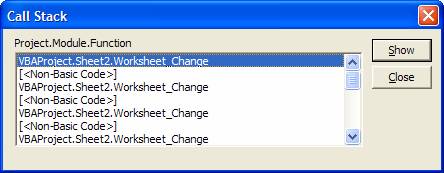
Figure 3
Double click any of the Worksheet_Change lines and the VBE will show:
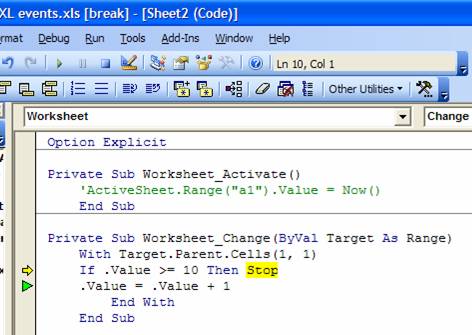
Figure 4
The yellow arrow indicates where the code currently is. The green triangle indicates the line that resulted in the last call to some procedure. Note that it is the .Value=.Value+1 line. Effectively, by changing the value in cell A1 the code caused Excel to trigger the Worksheet_Change event again. That happened repeatedly until the IF statement interrupted the process.
This example demonstrated a direct and rather obvious infinite recursion problem. In other instances, the cause can be more subtle making debugging very difficult. One event procedure may do something that raises some event. A procedure associated with that event may do something that raises yet another event, which would trigger yet another event procedure. At some point one of the event procedures does something that raises the first event itself and the process would be back at the start of all the recursive calls! The recursive loop would keep on repeating itself all over again.
Excel offers a property – EnableEvents – by which one can suppress events associated with the Excel application. Setting this property to False will cause Excel to stop raising any event until the property is changed back to True again. It appears to be very tempting, doesn’t it? We could rewrite our previous code
Private Sub Worksheet_Change(ByVal Target As Range)
Application.EnableEvents = False
With Target.Parent.Cells(1, 1)
.Value = .Value + 1
End With
Application.EnableEvents = True
End Sub
Code Sample 15
Now, when Excel adds 1 to the content of cell A1 it will not raise the Change event. This is a very powerful tool that when used correctly can dramatically reduce the risk of unintended recursion. However, there are two cases that the developer should be aware of.
The first problem with the EnableEvents property is that it applies only to the Excel application. There are many objects that a developer uses within the Excel environment that are not actually part of Excel object heirarchy. Event associated with those objects will continue to be raised. One of the most common objects is a userform! The userform is part of the Office library and setting Excel’s EnableEvents property to False will have no effect on events raised by a userform or by objects inside a userform. As it turns out there is no built-in method to block userform events. For a workaround see chapter xx.
The other problem with the EnableEvents property is that it is persistent in that it is not reset to True when user written code stops executing. By contrast, if one programmatically set ScreenUpdating to False, Excel will reset it to True when the VBA code stops executing. Since this doesn’t happen in the case of EnableEvents, it is imperative that the developer reset it to True. This must happen with no ifs or buts. The easiest way to do so is to always use an error trap with the EnableEvents property. There are a few different ways to do this and Code Sample 16 illustrates one.
Private Sub Worksheet_Change(ByVal Target As Range)
On Error GoTo ErrXIT
Application.EnableEvents = False
With Target.Parent.Cells(1, 1)
.Value = .Value + 1
End With
ErrXIT:
Application.EnableEvents = True
End Sub
Code Sample 16
In this chapter, we looked at how events can be used to significantly enhance the power of object oriented programming. We also saw how to create event sinks for Excel related events and looked at an apparently simplified model provided by Microsoft wherein event procedures are declared in objects directly rather than the associated class definition. Too many programmers, especially of the hobby variety, are seduced by this seeming ease and use worksheet and workbook modules for their event procedures. Unfortunately, the apparent simplicity is more than negated by the security and maintenance problems. One is best off implementing event level code in an add-in. This is a discipline that may seem to impose an unnecessary overhead on the developer. However, as every experienced developer knows the overhead is nothing of the sort; isolating code from data is a necessity borne out by decades of experience.
We also looked at some of the more subtle pitfalls of event programming, including one unique to Excel. Since there is no guarantee of the sequence in which event procedures are executed, it is easy to use (either read or write) global variables that are not in a stable state. While these problems are unlikely for code in a single add-in executed strictly within the confines of a single-threaded application such as Excel, it can be a significant source of errors in COM add-in, standalone programs, or add-ins that execute in other applications but contain Excel-related event procedures.
Finally, we looked at the problem of infinite recursion resulting from a procedure associated with an event executing code that causes the same event to be raised again. We also looked at one mechanism provided by Excel to address this specific problem, the EnableEvents property and the subtle issues that the developer should be aware of when using this property.

