To skip the documentation and immediately download the add-in:
Download the self-installing version or the zip version.
This add-in implements a powerful and flexible method for navigating within Excel. It uses a floating (or docked) menu for quick access to any visible sheet of any open workbook. For more information select a topic from the Table of Contents on the left or scroll down.
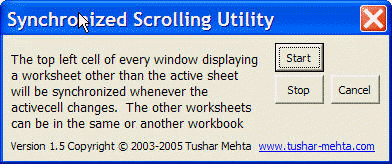 |
As the name implies, Synchronized Scrolling synchronizes the top left cell of every window displaying a worksheet whenever the active cell in the currently active worksheet changes. The other worksheets can be in the same or another workbook. Once the add-in is installed, the capability is accessible via TM | Navigation ► Synchronized Windows... . Start and stop decisions are made from the dialog box (see Figure S1).
This setting is persistent and will be remembered across a shutdown of the Excel program.
This add-in implements a powerful and flexible method for navigating within Excel. It uses a floating (or docked) menu for quick access to any visible sheet of any open workbook.
Figure 1a shows the navigator used as a floating toolbar and Figure 1b shows it configured for 'nested windows' operation and docked at the bottom of the Excel window.
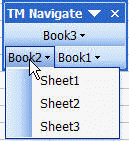
Figure 1a
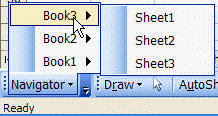
Figure 1b
Installation
Start by downloading either the self-installing version or the zip version.
Run the self-installing version of the program, and specify (or accept) the proposed installation directory. [Note that this also installs an uninstall capability accessible through Start | Control Panel ► Add or Remove Programs... | scroll down to the Workbook Navigator entry]
If you chose to download the zip version, unzip the add-in file to a directory of your choice.
In Excel, use Tools | Add-Ins... to load the add-in. Depending on where you installed the file in the above step, you may have to click the Browse... button and locate the file.
Make sure that your security setting allows the loading of the add-in. For versions of Excel after 2000, the easiest way to load the add-in is to ensure your security is set (temporarily, if you otherwise prefer another setting) to Medium. When Excel warns you about opening a file containing macros, you must select the 'Enable Macros' option.
Once loaded you should see the TM menu item on the main menu bar.
Using the add-in
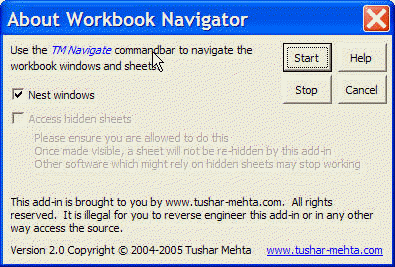 |
Turn on (or turn off) the navigation capability with the TM | Navigation ► Workbook Navigator... menu item. In the resulting dialog box, use the Start button to start the navigator and the Stop button to stop it.
The 'Nest windows' option controls whether the open windows are shown directly in the navigator toolbar or nested one level down. Each has its advantages and limitations. Most people will probably find the nested windows option very useful for a docked toolbar as shown in Figure 1b whereas having the windows directly accessible should be more useful for a floating toolbar.
Once active, the navigator shows all the windows of all open workbooks in a floating menu. Clicking on the item corresponding to a window will show a list of all visible sheets in the associated workbook. Select one and it will become the active sheet.
The add-in saves the various settings in the Windows Registry. This means that as long as the add-in itself remains loaded, it will automatically recreate the menu whenever Excel starts up -- until, of course, the add-in is told to stop,
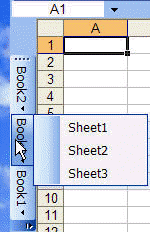 |
As a floating menu, you can move this anywhere on the screen that you want. It can also be docked as desired. Figure 3 shows the navigator docked on the left side of the Excel window without the 'nest windows' option and we have already seen Figure 1b, which shows the navigator toolbar docked at the bottom with the nested windows option turned on.
Version Information
| Version | Description |
| 1.1 | Implemented the 'nest
windows' capability Fixed reported bugs |
| 1.2 | Extended the 'Nest windows'
capability to Excel 97. Streamlined internal code to be independent of version of Excel. |
| 2.0 | Implements persistence of settings across
shutting down Excel Does a better job of remembering the previous configuration. |
The author's email address is web-underscore-contact-at-tushar-hypen-mehta-dot-cee-oh-em.

